How to Choose the Right External Hard Drive for Backups

2backups Team
Reviews, guides, and backup strategy from the 2backups editorial team
External drives are the cheapest, simplest way to get a real backup. They are also where most people overspend on things that don't matter and skimp on the one thing that does. Here's how to choose.
Start with capacity — and double it
Check how much data you actually have (on a Mac, About This Mac → Storage; on Windows, Settings → System → Storage). Then buy at least twice that. Backup software keeps old versions of files, your data grows every year, and a drive that fills up is a drive you stop using. For most households that lands between 4 TB and 8 TB.
Price per terabyte drops sharply as drives get larger. An 8 TB desktop drive often costs barely more than a 4 TB one.
Hard drive (HDD) or SSD?
This is the real decision.
| Hard drive (HDD) | Solid-state drive (SSD) | |
|---|---|---|
| Cost per TB | Very low | 3–5× higher |
| Speed | ~150 MB/s | 500–2,000 MB/s |
| Drop tolerance | Poor — moving parts | Excellent |
| Best capacity | Up to 20+ TB | Practical up to 4 TB |
| Best for | Large backups that stay on a desk | Laptops, travel, frequent use |
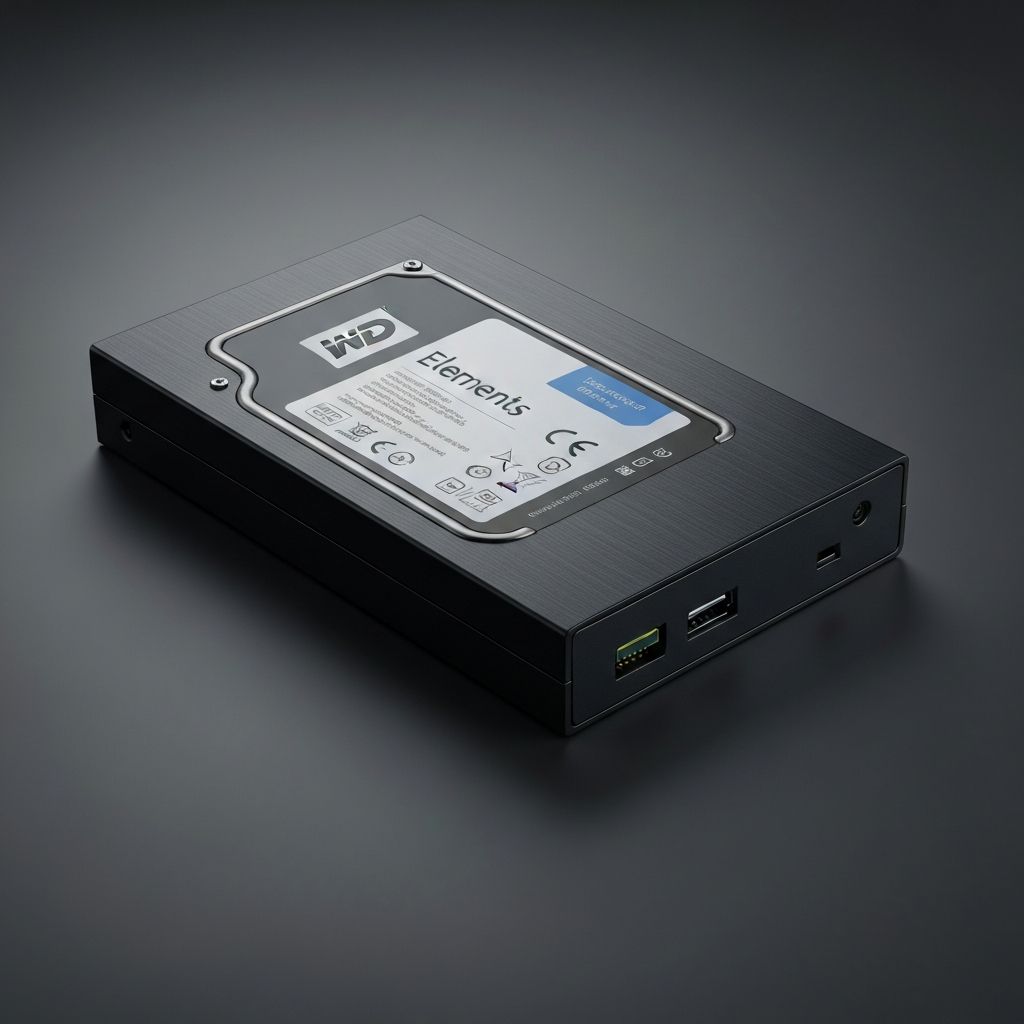
For a backup drive that sits next to a desktop, buy a hard drive. Capacity matters more than speed for a job that runs overnight. The WD Elements Desktop is the default recommendation for exactly this reason: boring, big, and cheap.
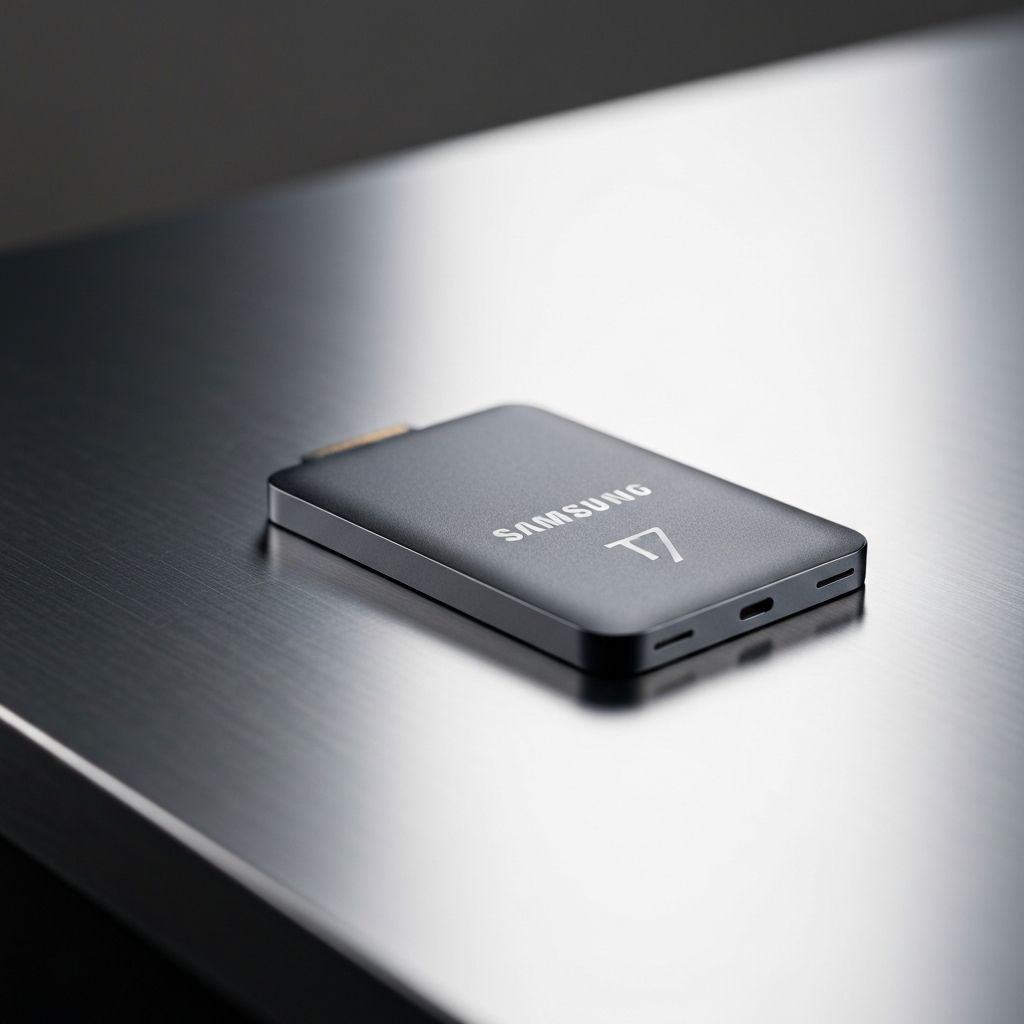
For a laptop that moves, buy an SSD. A hard drive that gets knocked off a café table is often dead. A portable SSD like the Samsung T7 shrugs it off, and it's small enough to keep in the bag permanently — which means the backup actually happens.
Desktop vs. portable
Desktop hard drives (3.5-inch) need a power adapter, offer the biggest capacities, and cost the least per terabyte. Portable hard drives (2.5-inch) run off USB power and are slower and smaller. If the drive won't leave the desk, go desktop.
Connection: don't overthink it
Any drive sold today uses USB 3.x, which is faster than a hard drive can go. For SSDs, USB 3.2 Gen 2 (10 Gb/s) is the sweet spot; Thunderbolt drives are faster on paper but cost far more and won't speed up a backup that's limited by your computer reading files. Check the cable that ships in the box matches your ports — USB-C on new machines, USB-A on older ones.
Encryption
A backup drive contains everything on your computer. If it's stolen, so is everything. Some drives offer hardware encryption with a keypad or software unlock; that's convenient but locks you into the vendor's tool. The more robust option is your operating system's own full-disk encryption — FileVault on macOS, BitLocker on Windows — applied to the external drive. It's free, well-tested, and the recovery key can live in your password manager.
Reliability: buy two, not one better one
Every drive fails eventually. Warranty length is a rough signal (2 years is standard, 3–5 suggests the maker expects it to last), but no consumer drive is reliable enough to be your only backup. Two cheap drives, one at home and one somewhere else, beat one expensive drive every time. That's the logic behind the 3-2-1 rule.
Features that don't matter
- Bundled backup software. Use your OS's built-in tool (Time Machine, File History) or a dedicated app. The vendor software is usually the weakest option.
- "Gaming" or "creative" branding. Same drive, higher price.
- RGB lighting. It's a backup drive.
Quick recommendations
- Desktop, maximum capacity per dollar: WD Elements Desktop
- Laptop, travel, or speed: Samsung T7 Portable SSD
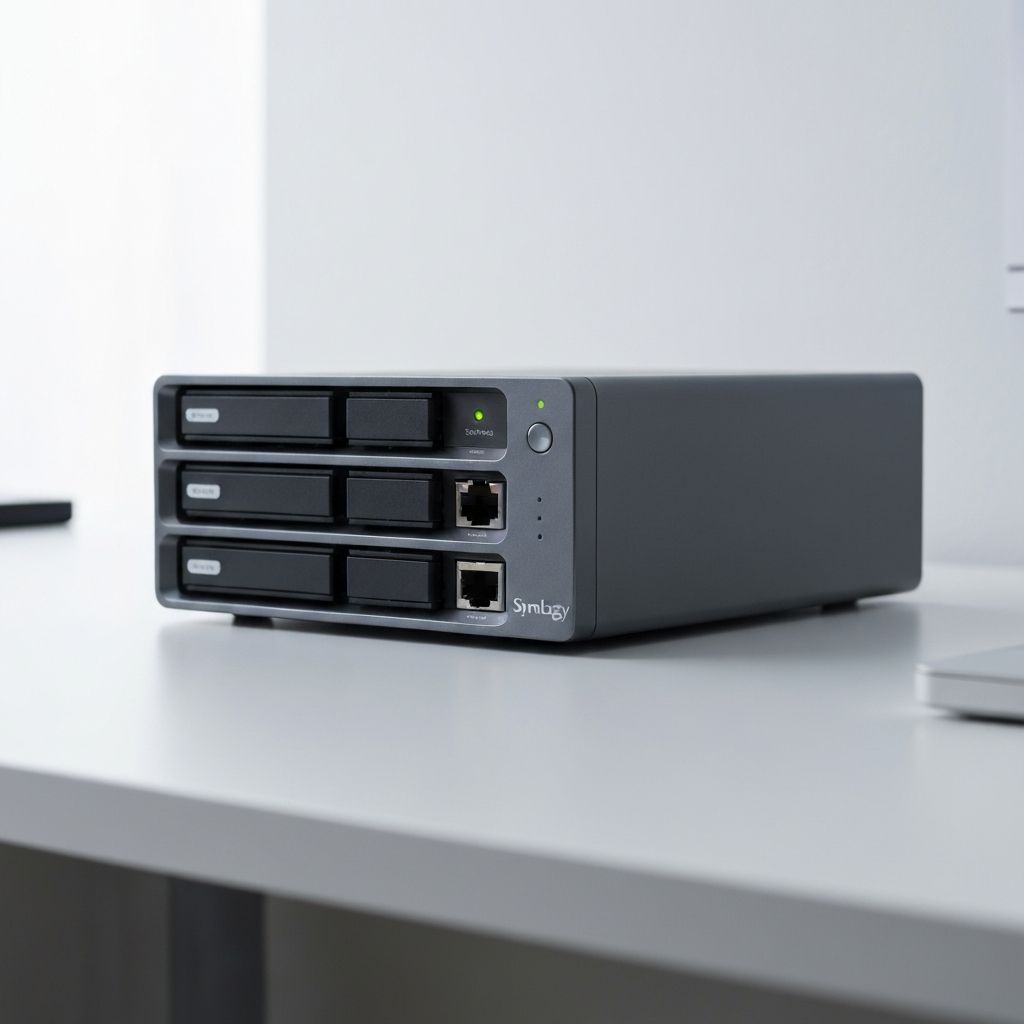
- Outgrown a single drive: a two-bay Synology NAS — see our setup guide